


You don’t think about backups when stuff works. Your Mac turns on fine. Photos open. Files saved. Music plays. Life’s good. Then one day, boom. The laptop won’t start. A file goes poof. The update breaks things. Or worse – your Mac gets stolen, dropped, or wet. That’s when you freak out. People don’t lose data ’cause they don’t care. They lose it ’cause they think it won’t happen. Until it does.
That’s why folks look for the best backup software for Mac. They want something that just works. No fuss. Something that saves their stuff without bugging them. Something they can trust when things go bad. This guide explains Mac backup software in simple words. What it does. Why Time Machine alone might not cut it. Which backup tools rock for different needs. And how to pick one without going crazy.
Why Backups Matter More Than You Think
Most data loss isn’t from hackers. It’s from boring stuff. A dead SSD. A bad update. You delete the wrong thing. Coffee spills. A laptop left behind. Macs are fast and solid, but when storage dies, it dies fast. No warning. No slow death. One second your files are there. Next second, gone.
A backup is your safety net. It turns a disaster into “oh well, no big deal.” Instead of “I lost it all,” you say “I got it back.” Good backup software makes this happen by itself. You don’t have to think. You don’t have to watch it. It just runs.
What Backup Software Actually Does
Backup software copies your stuff from here to there. Could be to a hard drive. Could be online. Could be both. Good backup software doesn’t just copy once. It keeps old versions. So if you mess up a file today, you can grab yesterday’s. This is huge. Most folks don’t get how cool this is until they need it.
Some tools back up just your files. Others back up everything so your Mac comes back exactly the same. Some do both. The best backup software? You forget it’s there. But when you need it, boom – it saves the day.
Time Machine: The Built-In Mac Backup Tool
Every Mac has a Time Machine. It’s Apple’s backup thing, and for lots of people, it’s the first thing they use. Time Machine backs up your Mac to a drive or network spot. It keeps copies from each hour, day, and week. Getting files back is easy. You literally go back in time and grab what you need.
For basic safety, Time Machine rocks. It’s free. It’s simple. It works with your Mac perfectly. But it’s not perfect. It usually backs up to one drive. If that drive dies, your backup dies too. It’s also not great for online or cloud backups. That’s why people look for more.
Why Many Mac Users Need More Than Time Machine
Time Machine saves you from local problems. Not all problems. Your Mac and backup drive in the same bag? Bag gets stolen? Both gone. Fire or flood? Local backups won’t help. Want encrypted cloud backups? Want more control? Time Machine feels limited.
This doesn’t mean Time Machine sucks. It just means it’s best as part of a bigger plan. That’s where other backup software comes in.
The Two Main Types of Backup Software for Mac

Most Mac backup software does one of two things. The first type backs up to drive near you. External drives, network drives, other Macs. They give you more control than Time Machine.
The second type backs up to the cloud. Your stuff goes to safe servers far away. Protected from theft or damage. The best ones? They do both.
Read More: Best Lease Accounting Software
Best Cloud Backup Software for Mac
Cloud backups rock because they protect you even when your stuff is gone. Backblaze is super popular for Mac folks who want easy cloud backup. It runs quietly and backs up almost everything. You don’t pick files. If it matters, it gets backed up.
The big win with cloud backup? Peace of mind. Your files live somewhere safe, far from your Mac. The downside? Speed. First backup can take days or weeks. Cloud backups cost money each month. But lots of folks think it’s worth it.
Best Local Backup Software Beyond Time Machine
Some folks want more control than Time Machine gives. But no cloud stuff. Carbon Copy Cloner is loved by Mac pros. It makes exact copies of your Mac that you can boot from. System drive dies? Boot from the backup. Keep working. That’s power. It also lets you schedule backups, keep old versions, and control exactly what gets copied. It’s clear but more techy than Time Machine. Great for folks who want control.
SuperDuper is another big name for local Mac backups. It keeps things simple and clones systems. Super helpful when you upgrade drives or need a backup Mac ready to go. Local backup tools are fast. No internet needed. But you still need to keep those drives safe.
Hybrid Backup Solutions: Local and Cloud Together
The safest backup plan uses both local and cloud. Some tools are built for this. You back up locally for speed. And to the cloud for disaster safety. If one fails, the other saves you.
This follows the “3-2-1” backup rule. Three copies of your data. Two different storage types. One copy far away. You don’t need fancy tools for this. Many Mac users do it with Time Machine plus a cloud service.
What Makes Backup Software “Best” for Mac
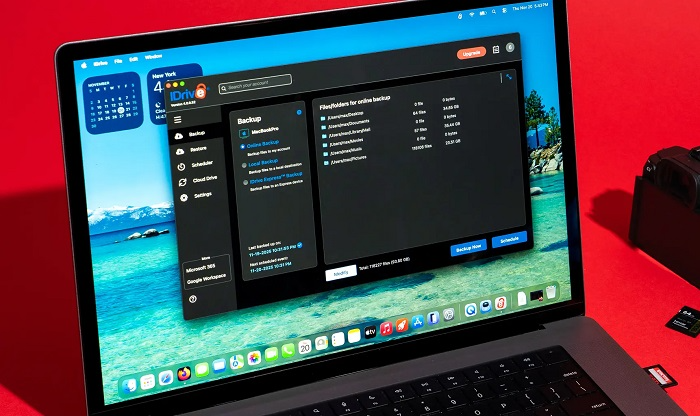
The best backup software isn’t the one with tons of features. It’s the one that fits you and actually runs. Good backup tools work by themselves. Manual backups fail ’cause people forget. Auto backups matter more than fancy screens.
Encryption is key too. Your backups should be locked so others can’t read your files. Super important for cloud backups and portable drives. Getting files back should be fast. Backups are useless if restoring is hard or confusing. Good software makes it simple, even when you’re stressed.
Matching Backup Software to Your Needs
Casual Mac user with photos and docs? Time Machine plus cloud backup usually works great. Simple and safe. Power user or creative pro? You might want cloning software for fast recovery. Tools like Carbon Copy Cloner fit well here.
Travel lots? Worry about theft? Cloud backups become super important. Can’t beat offsite protection. The “best” choice isn’t about your Mac model. It’s about how you use your data.
Common Backup Mistakes Mac Users Make
One big mistake? “I’ll back up later.” Later never comes. Another mistake? Using just one backup spot. If that backup fails, you’re stuck.Some folks back up but never test restores. Bad idea. A backup you can’t restore is no backup at all.
Another goof? Leaving out data to save space. When disaster hits, people often find they skipped the exact folder they needed.
How Often Should You Back Up a Mac
Best case? Backups happen every day or all the time in the background. Modern backup software is light and fast.
The more your data changes, the more you should back up. For most folks, daily work is fine. For pros working on active stuff, hourly or constant is better. The key? Make it automatic. If you have to remember, you’ll forget.
Free vs Paid Backup Software
Free backup tools exist, but they have limits. Time Machine is the best free option on your Mac. Some other tools offer basic free versions.
Paid backup software usually gives better features, support, cloud space, and peace of mind. For many folks, the cost is tiny compared to their data’s value.Think of backup software like insurance. You hope you never need it. But you’re glad it’s there.
The best backup software for Mac protects you quietly. It shouldn’t bug you. It shouldn’t make life hard. It should just work. Pick Time Machine, a cloud service, a cloning tool, or all three. The big thing? Start now. Data loss doesn’t warn you. It just happens. Set up a backup once. Let it run. Then relax knowing your files are safe.