

So you’ve got a Mac. And you take photos. At some point, you’ll want to make them better. Maybe that beach shot looks kinda dull. Maybe your product photo needs a quick fix. Or maybe you just want nicer colors. Sharper details. A cleaner look. Then the big question hits you.
Lots of folks think Mac photo editing means pricey monthly bills. Not true anymore! There are free tools out there that work great. They’re strong enough for everyday users. For creators. Students. Bloggers. Even small businesses.
This guide shows you the best free photo editing software for Mac. What each one does well. Where they fall short. Who should use what. And how to pick the right one without wasting your time.
No hype here. No sales pitch. Just honest help.
What Makes a Good Free Photo Editing Software for Mac?
Before we dive into tools, let’s talk about what matters.
Good free photo editing software should:
- Run smooth on your Mac
- Work with common image types
- Have basic tools like crop and color
- Let you use layers (if possible)
- Save images that look good
- Not slap watermarks everywhere
Some free tools are simple. Others pack more power. The best pick? Depends on what you need.
Built-In macOS Photos App: The Easiest Option
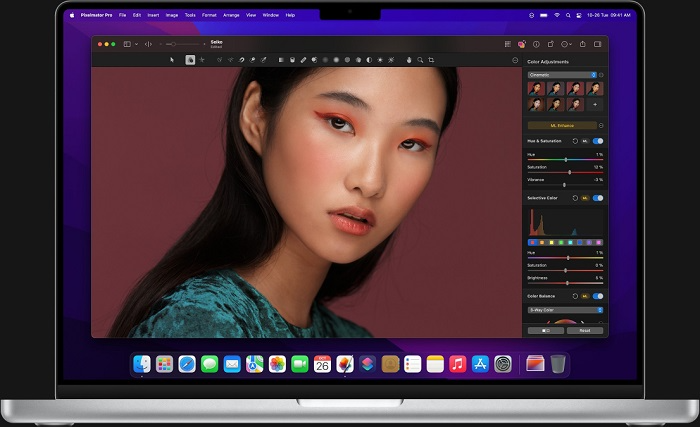
Hey, did you know your Mac already has a photo editor?
The Photos app lets you:
- Crop and straighten stuff
- Adjust light and color
- Add filters
- Fix red eyes
- Do basic touch-ups
For quick edits? It works great. It’s fast. Clean. And it just works with your Mac.
But yeah, it has limits. No layers. No fancy retouching. No wild effects.
Best for:
- Quick fixes
- New users
- Basic photo cleanup
GIMP: The Most Powerful Free Photo Editor for Mac
People call GIMP the free answer to the pro stuff.
It gives you:
- Layer-based editing
- Deep color control
- Masks and selections
- Brushes and touch-up tools
- Plugin support
Want serious control without paying? GIMP is tough to beat.
The catch? It looks scary at first. It takes time to learn. But once you get it? Super powerful.
Best for:
- Serious photo work
- Graphic design
- Users who want full control
Krita: Great for Digital Artists and Photo Editing
Krita is known for digital art. But it’s also solid for photos.
You get:
- Layer editing
- Color tweaks
- Filters
- Masking tools
- Amazing brush engine
Krita feels fresh and modern. It’s smooth, fast, and loves Macs.
Great if you mix photo editing with drawing.
Best for:
- Artists
- Creators
- Photo edits mixed with art
Darktable: Best for RAW Photo Editing
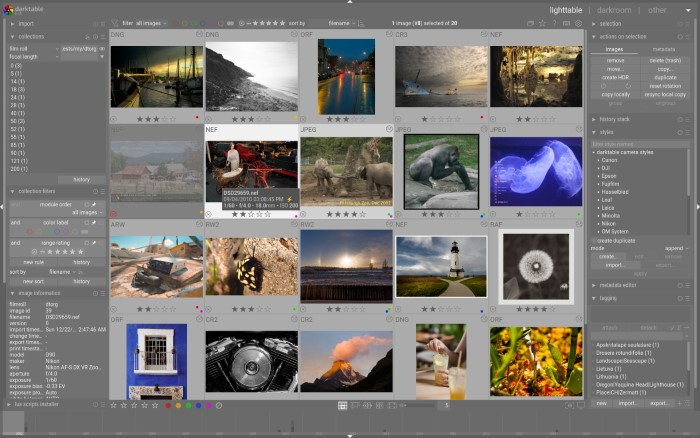
Shoot with a real camera? Use RAW files? Check out Darktable.
Darktable does:
- Non-destructive editing (which means your original stays safe)
- Pro color fixes
- RAW image work
- Batch editing
- Deep control over light and tone
Think of it like a digital darkroom. You don’t change pixels directly. You adjust how the image gets processed.
The interface feels techy. But the results? Excellent.
Best for:
- Photo pros
- RAW image work
- High-quality photo flows
RawTherapee: Another Strong RAW Editor for Mac
RawTherapee is like Darktable but with its own vibe.
It has:
- Advanced RAW work
- Strong color tools
- Noise cleanup
- Lens fixes
- Fine detail control
Super precise. Perfect for folks who love tweaking every setting.
Not great for design or text. But for photo quality? It rocks.
Best for:
- Advanced photo folks
- Image quality nerds
- RAW-focused work
Pixlr Web Editor: Free and Browser-Based
Not all photo editors need installing.
Pixlr runs in your browser and has:
- Crop and resize
- Filters and effects
- Basic touch-ups
- Layers
- Text tools
Quick and easy. No storage needed. Just open and edit.
The free version has ads and some limits. But still useful for fast edits.
Best for:
- Quick edits
- Casual users
- Shared Mac editing
Photopea: A Web-Based Editor That Feels Familiar
Photopea is shockingly powerful for a browser tool.
It handles:
- Layers
- PSD files
- Smart selections
- Text tools
- Filters and tweaks
Used pro software before? Photopea will feel like home.
The free version has ads. But no forced watermarks.
Best for:
- Power without installing
- Editing PSD files
- Working on any computer
Canva Free Version: Best for Design-Oriented Editing
Canva isn’t your typical photo editor. But people love it.
It’s great for:
- Social media graphics
- Posters and banners
- Text-heavy designs
- Simple photo tweaks
The free version has tons of templates. Plus basic photo tools.
Not for detailed work. But perfect for visual content.
Best for:
- Social media folks
- Marketing visuals
- Fast design work
Paintbrush: Lightweight and Simple
Paintbrush is a simple Mac tool.
It has:
- Basic drawing tools
- Simple editing
- Quick image changes
Not powerful. But fast and easy.
Best for:
- Simple tasks
- Light editing
- Minimal tool needs
How to Choose the Best Free Photo Editing Software for Mac
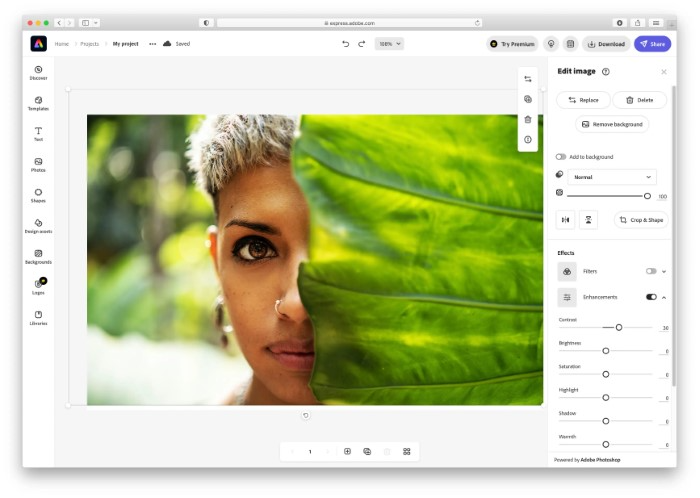
Picking the right tool? Think about what you do most.
Ask yourself:
- Do I edit RAW photos?
- Do I need layers?
- Want speed or power?
- Photos or graphics?
- Simple or advanced?
There’s no single “best” for everyone.
Best Free Photo Editing Software by Use Case
For beginners:
Photos app, Canva
For advanced work:
GIMP, Krita
For photo pros:
Darktable, RawTherapee
For quick online edits:
Pixlr, Photopea
For artists:
Krita
Match the tool to your needs. Save time. Avoid headaches.
Limitations of Free Photo Editing Software
Free tools rock. But they have limits.
Common ones:
- Harder to learn
- Fewer AI features
- Less automation
- Slower with big files
- Limited help
But for many? These limits don’t matter.
Can Free Software Replace Paid Editors?
For lots of people? Yes!
If you:
- Edit casually
- Make social content
- Do hobby photos
- Run a small blog or shop
Free software works fine.
Paid tools make sense when:
- Time really matters
- You need smart automation
- It’s your full-time job
Tips for Better Photo Editing on Mac Using Free Tools
Whatever software you pick:
- Edit without destroying originals
- Keep backup files
- Learn shortcuts
- Watch how-to videos
- Practice on real photos
Skills beat software. Every time.
Performance Tips for Mac Users
Keep editing smooth:
- Close other apps
- Use external storage smart
- Update macOS
- Keep disk space free
Free tools love clean systems.
The Future of Free Photo Editing Software
Free photo editing keeps getting better.
We’re seeing:
- Better web editors
- Faster speeds
- Improved color tools
- Smarter workflows
The gap between free and paid? Getting smaller.
You don’t need to pay to edit photos well on Mac. Free tools have gotten so good. They handle everything from quick fixes to pro photo work. The trick? Pick the right tool for your needs. Simple tasks need simple tools. Big projects need powerful ones.
Whether you’re fixing vacation photos, making social content, or working on creative stuff, there’s a free Mac editor that fits. Try a few. Learn one well. And remember – great edits come from practice. Not price tags.