

Close Menu
Softwaresgear.comSoftwaresgear.com
  • Home
  • Antivirus
  • Games
  • MacOS
  • Security
  • Web Hosting
  • Windows
Facebook X (Twitter) Instagram
Trending
  • BMW Software Update: The Simple Guide to Keeping Your Car Smarter, Faster, and Safer
  • Junior Software Developer Jobs: Your Simple Guide to Starting a Tech Career
  • Mac Software Update: The Simple Guide to Keeping Your Mac Fast, Safe, and Running Smooth
  • Software Engineer Jobs NYC: Your Simple Guide to Working in the Tech Capital of the East
  • Seattle Software Engineer Jobs: Your Easy Guide to Working in the Tech Hub of the Northwest
  • Capital One Software Engineer: The Simple Guide to the Job, Work, Skills, Salary, and Growth
  • Software Testing Jobs: Your Simple Guide to a Career in Testing
  • Software QA Jobs: The Simple Guide to a Career in Testing
Thursday, December 4
Softwaresgear.comSoftwaresgear.com
  • Home
  • Antivirus
  • Games
  • MacOS
  • Security
  • Web Hosting
  • Windows
Facebook X (Twitter) Instagram
Softwaresgear.comSoftwaresgear.com
Home - Software - Mac Software Update: The Simple Guide to Keeping Your Mac Fast, Safe, and Running Smooth
Software

Mac Software Update: The Simple Guide to Keeping Your Mac Fast, Safe, and Running Smooth

By AstrydDecember 3, 20255 Mins Read
Facebook Twitter Pinterest Telegram LinkedIn Tumblr WhatsApp Email
mac software update 1
Share
Facebook Twitter LinkedIn Pinterest Telegram Email

Got a Mac? You know how nice it feels. Smooth. Fast. Easy. That’s why we love them, right? But here’s the thing. You gotta keep it fresh. How? Updates.

Think of Mac updates like vitamins for your computer. They fix bugs. Stop hackers. Add cool stuff. Make things faster. Skip them? Your Mac gets slow. Apps crash. Sites won’t load. Bad guys find ways in. Not good.

You know how cars need oil changes? Same deal. Skip too many and… yikes.

So let’s break it down. What are these updates? Why care? How do you get them? What breaks do they fix? And how can you make it all easy? I’ll explain it simply.

Table of Contents

Toggle
  • What Is a Mac Software Update?
  • Why Mac Software Updates Matter So Much
  • How to Check for Mac Software Updates
  • How to Install Mac Software Updates
  • How Long Do Updates Take?
  • What Problems Do Mac Software Updates Fix?
  • Why Some People Fear Updates
  • Problems You Might See After Updating
  • Should You Turn on Automatic Updates?
  • How Often Do Mac Updates Come Out?
  • Do Older Macs Still Get Updates?
  • Tips to Make Mac Updates Smooth
  • What You Should Update Besides macOS
  • Should You Update Right Away or Wait?
  • Common Myths About Mac Updates
  • The Future of Mac Software Updates

What Is a Mac Software Update?

What Is a Mac Software Update 1

A Mac update is like a gift from Apple. It makes your computer better. Updates macOS – that’s the brain of your Mac. Plus apps like Safari, Mail, and Photos.

What’s inside an update?

  • Bug fixes
    • New stuff
    • Safety patches
    • App upgrades
    • Speed boosts
    • Battery help
    • New looks
    • Crash fixes

Two types exist.

Big updates

These come once a year. New macOS versions. Like:

  • macOS Ventura
    • macOS Sonoma
    • macOS Monterey

Big changes. New looks. New tools.

Small updates

These pop up often. Fix little things. Close safety holes. Make stuff stable.

Both help. Both matter.

Why Mac Software Updates Matter So Much

Look, I get it. “Remind me later” is easy to click. For weeks. Maybe months. But updates do more than you think.

They fix bugs

Every macOS has quirks. Apps crash? Wi-Fi acts weird? Mac freezes? Updates fix these. Your Mac runs better after.

They protect your stuff

Bad guys hunt for weak spots. Apple finds them first. Patches them. Skip updates? You’re an easy target.

They give you free stuff

New features. Fresh design. Better tools. Cool shortcuts. Even new emojis.

All free. Just update.

They speed things up

Updates kill slowdowns. Help battery life. Boost speed. Old Macs feel new again.

Apps need them

Some apps quit working on old macOS. Updates keep things working right.

They help Macs last

Updated Macs stay healthy. For years and years.

How to Check for Mac Software Updates

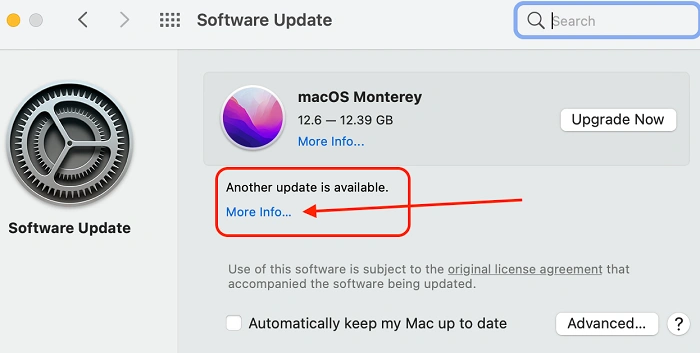
Super easy to check.

  • Click the Apple logo
    • Pick System Settings
    • Hit General
    • Hit Software Update

Your Mac looks for updates. Found one? You’ll see “Update Now”.

Click it. Done!

How to Install Mac Software Updates

Installing is simple. But know these things.

Step 1: Plug in power
Step 2: Check your space
Step 3: Close big apps
Step 4: Hit Install
Step 5: Wait

The screen goes black. Restarts twice. Normal.

That’s it. Updated.

How Long Do Updates Take?

Small ones: 5 to 20 minutes
Big ones: 30 minutes to 2 hours

Slow internet? It takes longer.

What Problems Do Mac Software Updates Fix?
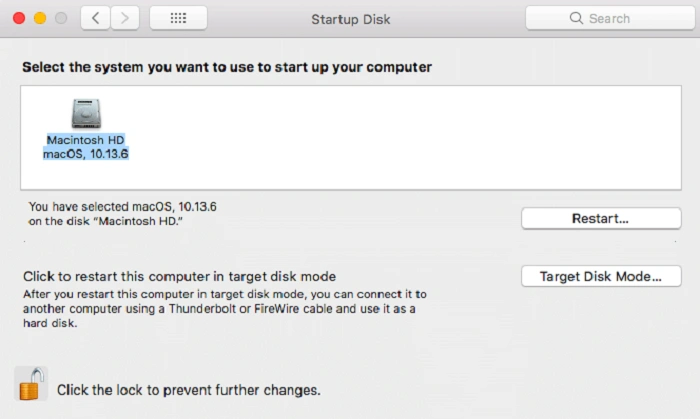
What Problems Do Mac Software Updates Fix 1

Updates fix tons of stuff. Like:

  • App crashes
    • Slow Mac
    • Battery drain
    • Wi-Fi issues
    • Safety holes
    • Bluetooth issues
    • File errors
    • Overheating

Why Some People Fear Updates

People worry:

  • Apps might break
    • Mac might slow down
    • Update might fail
    • Files might disappear

Truth is:

  • Apple tests a lot
    • Problems are rare
    • You can backup first
    • You can go back if needed

Updates help far more than they hurt.

Problems You Might See After Updating

Sometimes small things happen.

Mac feels slow
Fix: Restart twice.

Battery drains
Fix: Wait a day.

Apps don’t work
Fix: Update the app.

Bluetooth cuts out
Fix: Turn off and on.

Wi-Fi breaks
Fix: Forget network, reconnect.

Update stuck
Fix: Restart and try again.

Should You Turn on Automatic Updates?

Most people should. It makes life easy.

  • Open System Settings
    • Hit General
    • Pick Software Update
    • Turn on automatic

Your Mac will update apps, safety patches, and macOS on its own.

How Often Do Mac Updates Come Out?

  • Big update yearly
    • Safety updates every few weeks
    • App updates anytime
    • Safari updates often

Do Older Macs Still Get Updates?

Yes, but not forever.

The new macOS works on Macs from the last 7 to 8 years. Older ones may stop getting full updates but sometimes still get safety patches.

Tips to Make Mac Updates Smooth

  • Make space
    • Backup before big updates
    • Keep plugged in
    • Restart weekly
    • Update apps too
    • Keep internet stable

What You Should Update Besides macOS

  • App Store apps
    • Safari
    • Printer drivers
    • Any pro apps you use

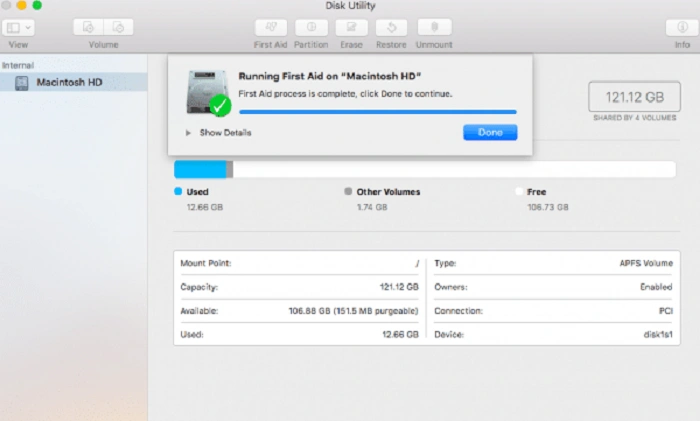
Should You Update Right Away or Wait?
What Problems Do Mac Software Updates Fix 3

Update now if you want:

  • Safety
    • Speed
    • New features

Wait a week if you use sensitive apps or want others to test first.

Common Myths About Mac Updates

Myth: Updates slow Macs
Truth: They speed them up

Myth: Updates cause bugs
Truth: They fix bugs

Myth: You’ll lose files
Truth: Files stay safe

Myth: You don’t need updates
Truth: You really do

The Future of Mac Software Updates

Apple is working on:

  • Faster installs
    • Smarter AI features
    • Better battery life
    • Stronger safety
    • Cloud tools

Your Mac stays modern for years.

Mac updates are the best thing you can do for your computer. They make everything better. Faster. Safer. Cleaner. More stable.

 Want your Mac to last? Update often.
Want smooth apps? Update often.
Want to stay safe? Update often.

Your Mac helps you every day. So keep it updated. It’s the easiest win ever.

Share. Facebook Twitter Pinterest LinkedIn Tumblr Email
Previous ArticleSoftware Engineer Jobs NYC: Your Simple Guide to Working in the Tech Capital of the East
Next Article Junior Software Developer Jobs: Your Simple Guide to Starting a Tech Career
Astryd
  • Website

Astryd is a seasoned tech enthusiast and prolific blogger at SoftwaresGear.com. With a passion for cutting-edge software and a knack for simplifying complex tech concepts, Astryd delivers insightful and engaging content that empowers readers to harness the full potential of their digital tools.

Related Posts

BMW Software Update: The Simple Guide to Keeping Your Car Smarter, Faster, and Safer

December 3, 2025

Junior Software Developer Jobs: Your Simple Guide to Starting a Tech Career

December 3, 2025

Software Engineer Jobs NYC: Your Simple Guide to Working in the Tech Capital of the East

December 2, 2025

Seattle Software Engineer Jobs: Your Easy Guide to Working in the Tech Hub of the Northwest

December 2, 2025

Capital One Software Engineer: The Simple Guide to the Job, Work, Skills, Salary, and Growth

December 1, 2025

Software Testing Jobs: Your Simple Guide to a Career in Testing

December 1, 2025
Most Popular

PaperCut Software: The Simple Way to Manage Printing and Save Money

November 20, 2025

Jolt Software: The Easy Way to Run Your Team

November 20, 2025

IDEA Software: The Easy Way to Check and Study Data

November 19, 2025

Software Engineer Jobs in Boston: Your Guide to Tech Jobs in the Hub

November 19, 2025

Timeslips Software: The Smart Way to Track Time and Billing

November 18, 2025
Recent Posts
  • BMW Software Update: The Simple Guide to Keeping Your Car Smarter, Faster, and Safer
  • Junior Software Developer Jobs: Your Simple Guide to Starting a Tech Career
  • Mac Software Update: The Simple Guide to Keeping Your Mac Fast, Safe, and Running Smooth
  • Software Engineer Jobs NYC: Your Simple Guide to Working in the Tech Capital of the East
  • Seattle Software Engineer Jobs: Your Easy Guide to Working in the Tech Hub of the Northwest
Our Picks

Seattle Software Engineer Jobs: Your Easy Guide to Working in the Tech Hub of the Northwest

December 2, 2025

Capital One Software Engineer: The Simple Guide to the Job, Work, Skills, Salary, and Growth

December 1, 2025

Software Testing Jobs: Your Simple Guide to a Career in Testing

December 1, 2025
Follow Us
  • Facebook
  • Twitter
  • Pinterest
  • Instagram
  • LinkedIn
Softwaresgear.com © 2025 All Right Reserved
  • Privacy Policy
  • Contact US

Type above and press Enter to search. Press Esc to cancel.